iPhone and iPad do not need a desktop print server to produce a shipping label. EasyLabel Print receives the label from the iOS Share sheet, prepares it for the configured paper size, and sends the printer’s native commands directly to supported hardware.
Before you begin
Add and save a compatible printer in EasyLabel Print. For a network printer, the iPhone or iPad must be on the same local network. For Bluetooth, allow the app to find nearby Bluetooth devices. Run Test connection and Print test page once so the label size, orientation, mirror setting, and colour inversion are known to be correct.
1. Save or open the shipping label
Download the label as a PDF or image from the courier, marketplace, ecommerce platform, email, or browser. If an app shares only a web link, save the actual PDF or image to Files first. EasyLabel Print accepts printable files, not a link to a webpage.
2. Open the iOS Share sheet
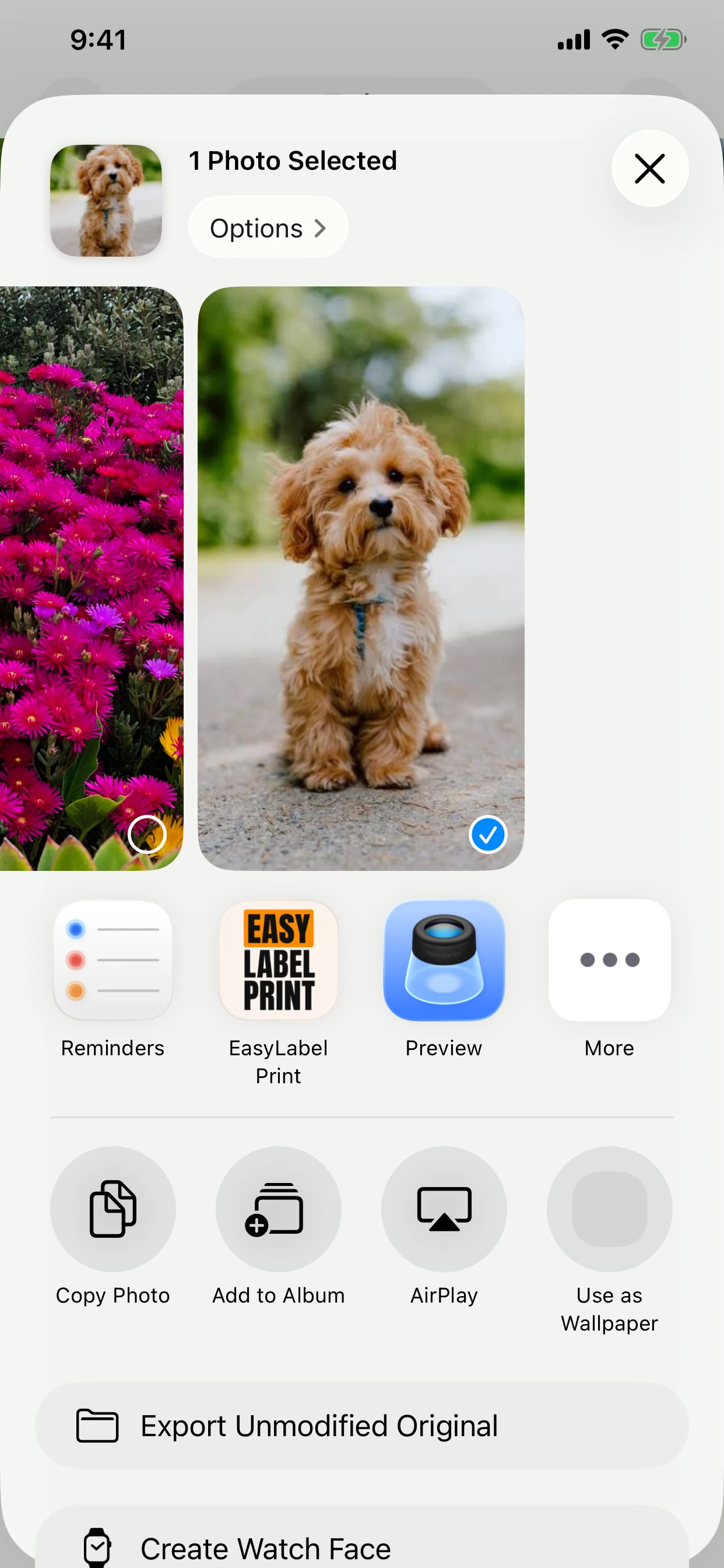
Open the saved label, tap Share, and choose EasyLabel Print from the app row. If it is hidden, scroll to the end of the row, tap More, then add EasyLabel Print to your favourites. The available share extensions are controlled by the app that owns the document, so saving to Files is the reliable fallback.
3. Review the print job
The print screen shows the shared document, page count, copy count, selected printer, label dimensions, and resolution. Confirm that the right printer is selected. One Share action counts as one print in the free-use allowance; test pages do not count.
4. Tap Print
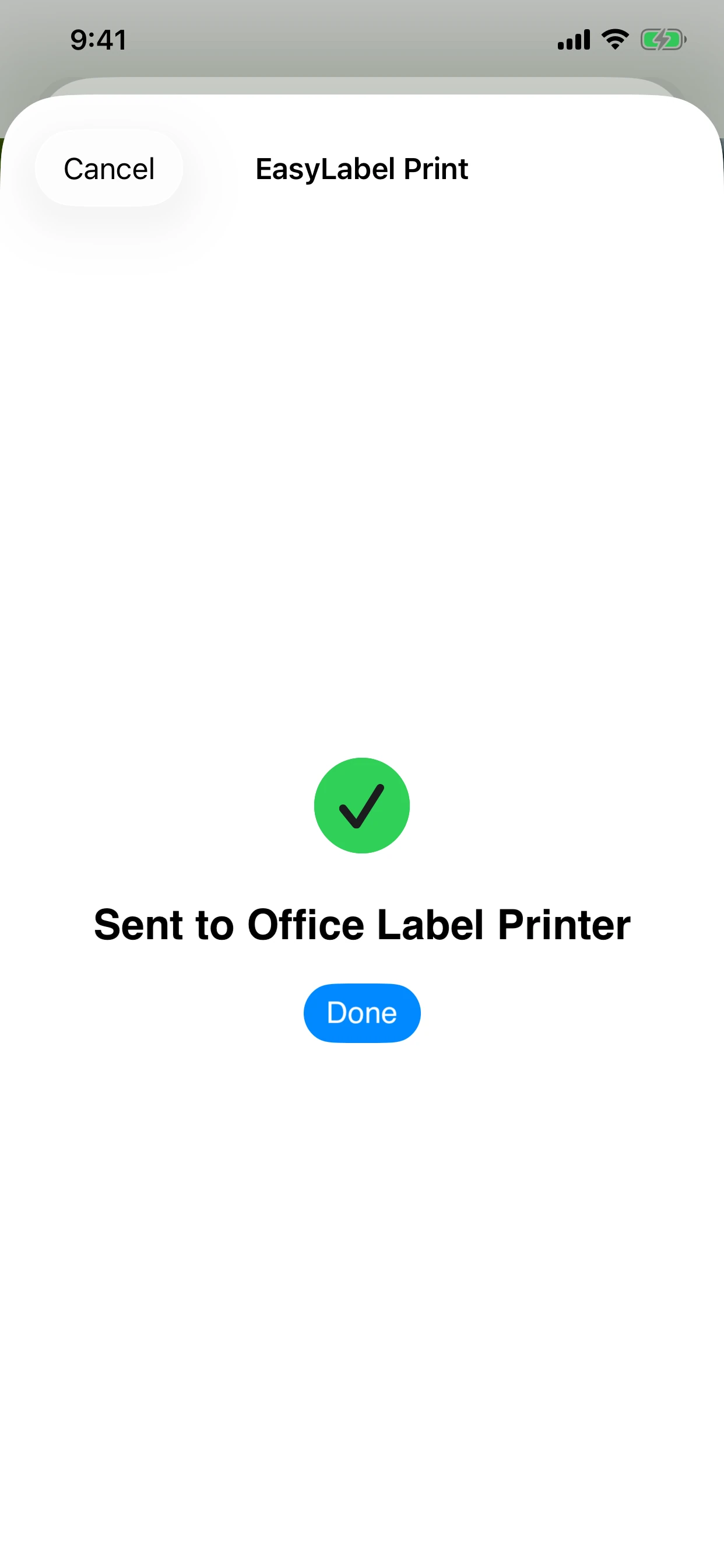
EasyLabel Print renders the document using the saved Fit and orientation settings, creates commands for the selected protocol, and sends them to the printer. Keep the app open until the success confirmation appears. If the paper feeds but the output is wrong, the connection is working—adjust the paper or image settings rather than discovering the printer again.
Label does not fit?
Choose Fit to Document to keep the full label visible, or Fill Label (may crop) when the document should cover the paper edge-to-edge. Auto-rotate usually makes the best use of a 4 × 6 inch label.
Fix scaling, rotation, mirroring, and cropping →Printing another label
Return to the courier or selling app and repeat the Share action. EasyLabel Print remembers the configured printers and their paper settings. You can make one printer the favourite so it is preselected when the share extension opens.